

Page animation presets add movement to a whole page in your design. They are useful when you want the page itself to animate, rather than adding an animation to a single text box, image, or graphic.
Add a page animation from the background action bar
- Open your design in the Easil editor.
- Click the page background so no individual element is selected.
- Click the Animation button in the background action bar.
- Choose a page preset from the animation popout.
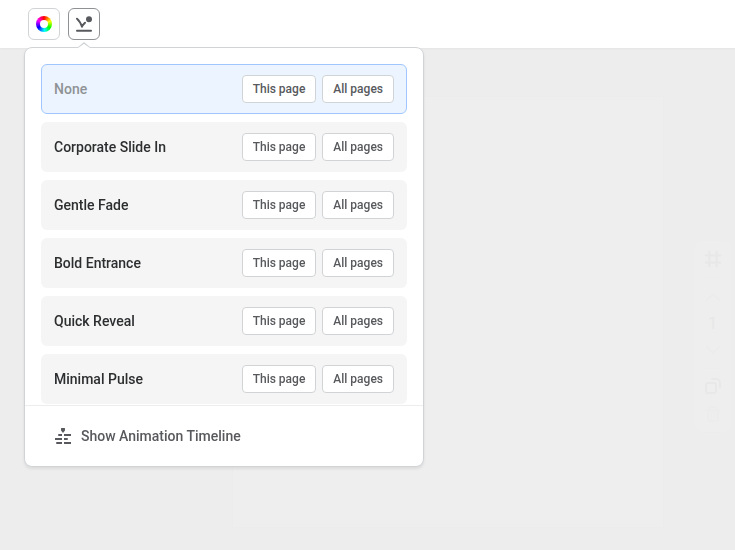
The background animation popout shows page presets only, so you can apply a page-wide animation without first selecting an element.
Show or hide the animation timeline
Use the Show Animation Timeline button at the bottom of the animation popout to open the timeline. You can use the timeline to review page transitions and adjust the timing of animated designs.
When the timeline is already open, the same button changes to Hide Animation Timeline.
You can also open or close the timeline from the Page Presets tab when you are working with an element’s animation options.